Fabrics section
This guide walks you through the process of creating a Fabric Page for your Shopify theme using metaobjects. This setup allows you to manage fabric data dynamically and efficiently without editing content manually in the theme.
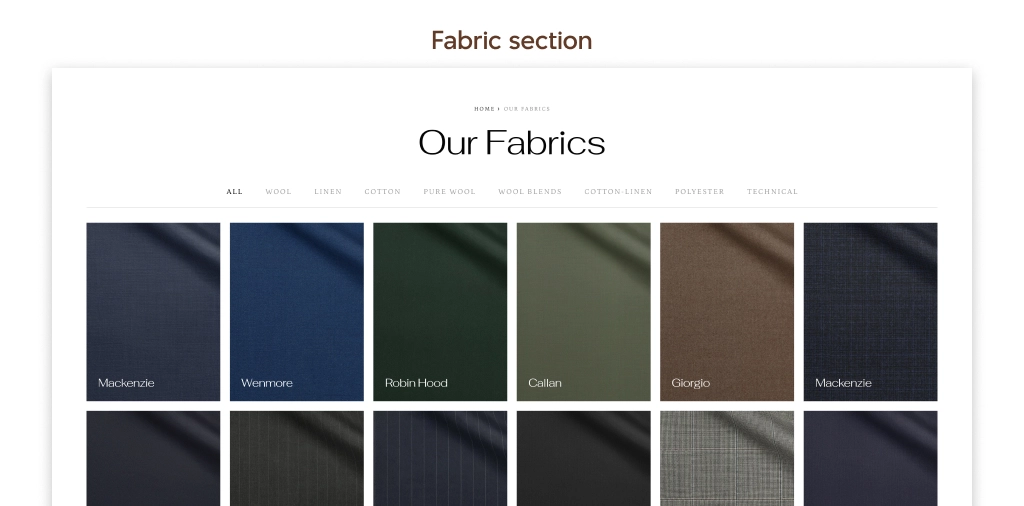
How to show fabric gallery through the Fabric section
Step 1: Add Fabric Section to a Page
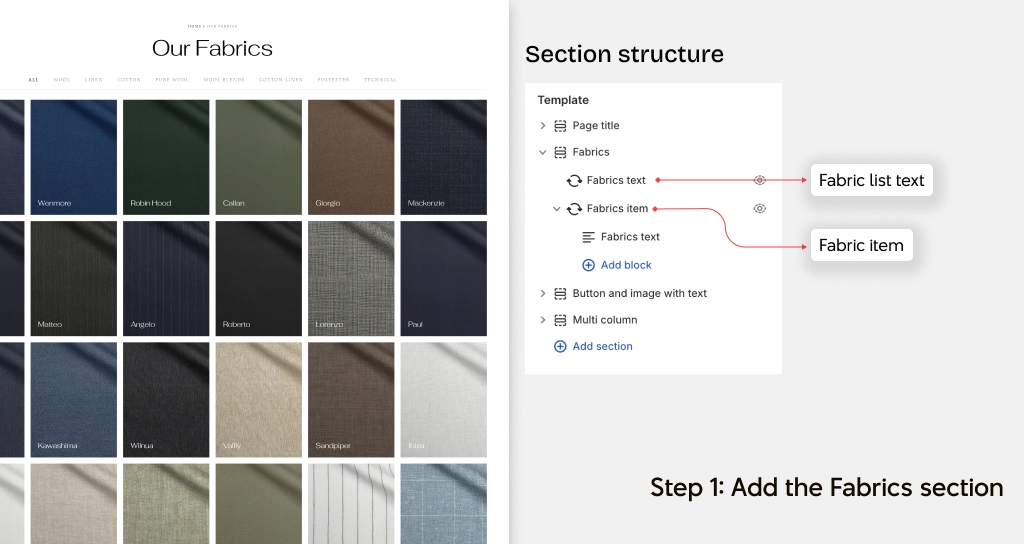
- Go to Online Store → Themes
- Click Customize on your active theme
- Open the page template you just created
- Click Add section
- Select Fabric Section
- Save your changes
Step 2: Create Metaobject – Fabric Item
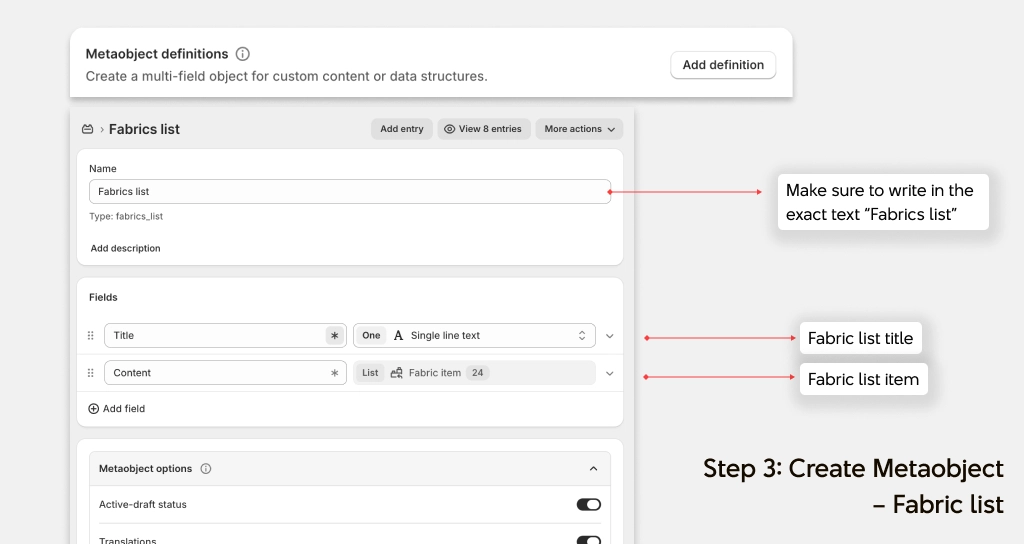
2.1. Create Definition
- Go to Settings → Custom data → Metaobjects
- Click Add definition
- Name it exactly like this: Fabric Item
2.2 Add Fields
Create the following fields:
- Fabric Name / Type: Single line text
- Fabric Image / Type: File (Image)
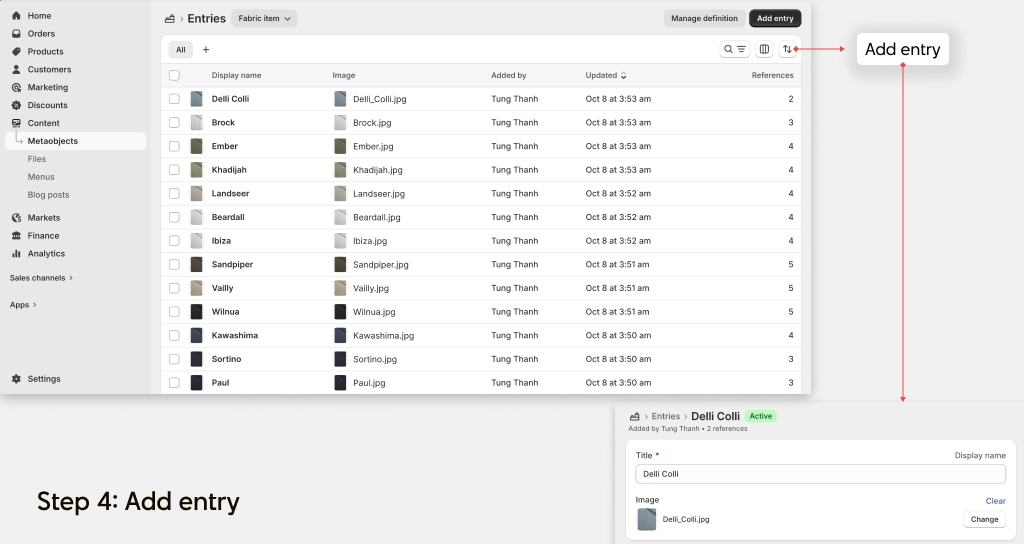
2.3 Create Entries
- Open the Fabric Item definition
- Click Add entry
- Fill in: Fabric name Upload fabric image
- Repeat to create multiple fabric items
Step 3: Create Metaobject – Fabric List
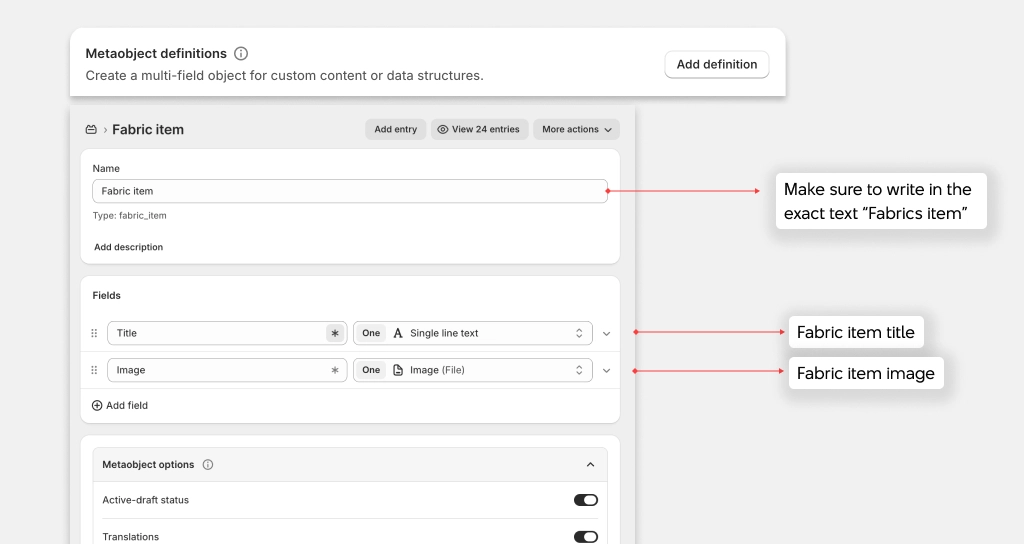
Create Definition
- Go to Settings → Custom data → Metaobjects
- Click Add definition
- Name it: Fabric List
Add Fields
Create the following fields:
- List Name / Type: Single line text
- Fabric Items / Type: List of entries / Mixed reference to: Fabric Item
Step 4: Create Entries
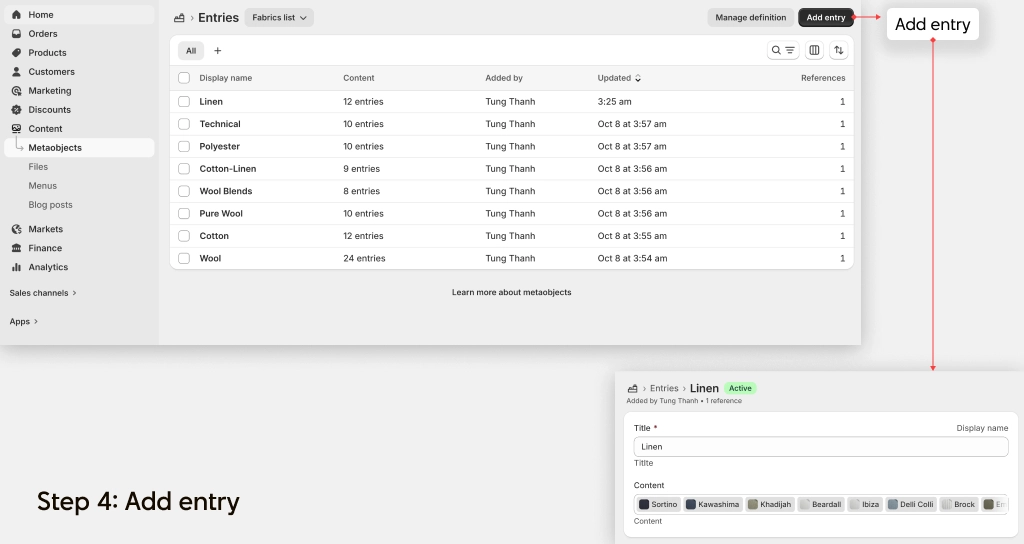
- Open the Fabric List definition
- Click Add entry
- Enter a list name (e.g., Summer Fabrics)
- Select multiple Fabric Items
- Save
Step 5: Automatic Data Binding in Theme
Once your metaobjects are set up, the theme will automatically retrieve and display the Fabric data.
The Fabric Section is designed to pull data from the Fabric List metaobject. No manual linking is required inside the theme editor. As long as:
- Fabric Items are created
- Fabric Lists are properly configured
The content will automatically appear on your Fabric page
Final result
After completing the steps above, your Fabric page will:
- Display fabric collections dynamically
- Show fabric names and images
- Update automatically when metaobject data changes
This makes your content scalable and easy to manage.
Tips & Best Practices
-
Use consistent naming Keep fabric names clear and structured
-
Optimize images Recommended: Same ratio for all images High resolution (at least 1000px)
-
Group fabrics logically Example: By season (Summer, Winter) By material (Cotton, Linen, Silk)